Showing posts with label Blogging. Show all posts

Ultimate ways to make money by blogging

make money, blogging, blogger
If you want to make money online from your blog. You work many hours to develop your blog but are not earning anything then this post is ultimately going to help you. This post will also cover the different ways to earn money online.

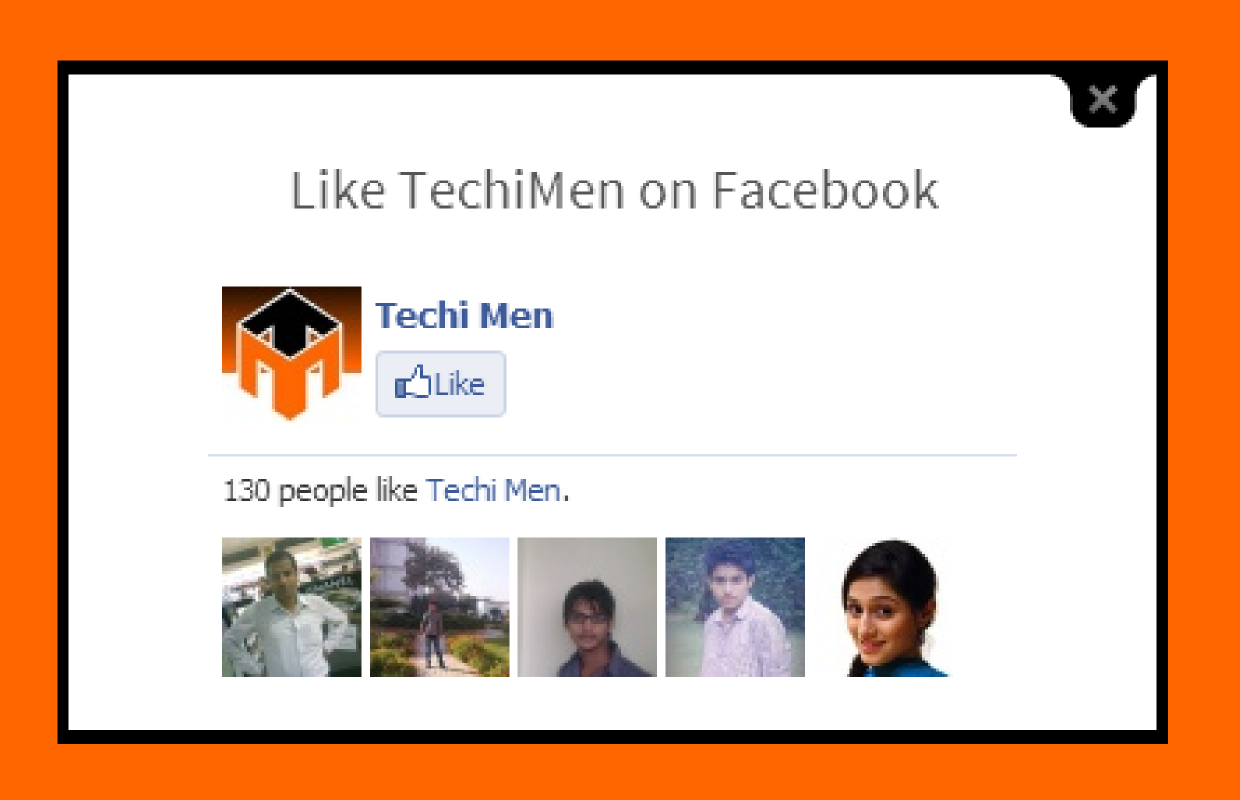
Facebook likebox in lightbox for new visitor

How to open Facebook likebox in lightbox
What if you ask your first time visitor on your website to like your Facebook page, about 90% people will exit and about 10% people will like your page. Your Facebook page's likes is the status of your page on Facebook. Isn't it? Yes it is this widget will help you little to increase likes. Even we used this for sometime to increase our likes on TechiMen but we later removed it for no reason. This widget help you make your blog more professional and good looking and the increase in your Facebook likes. The best thing is that this widget only ask to like those visitors who visit the blog or website for the first time. If somebody clicks anywhere except on likebox, the likebox lightbox disappears. The pop-up likebox also disappears when the page is refreshed/reloaded or F5 is pressed.

So let us come to the point 'how to install it on your Blogger blog?':
Steps:
1. Go to Blogger then to your blog
2. Now go to layout from dashboard.
3. If you already have HTML/JavaScript
OR
Click on Add Widget in any section "Sidebar or Footer" and select HTML/JavaScript
4. Now copy the script below (after changing 'TechiMen' with your Facebook page username or page id) and paste in the HTML/JavaScript widget


5. Now click on 'Save'.

Now the widget will work when somebody visits your blog or website first time or deletes its cache/cookies and browser history. I hope it works for you.

Cricket Mag Template for Blogger


Name of Blogger Template: Cricket Mag
For: All blogs or websites which post news or articles about any sport specially cricket.
Published: August, 2013

            
Description: The template is designed for the blogs which are about cricket. But the template can be customized for any sport. For example Soccer, Tennis, Basket Ball or any other sport in this world. The template can also be used for news blogs and websites. The template has green and black theme with a background picture in which there are bats, balls, and the wills. You can customize the background image by going to Template > Edit HTML. The template has a great looking social pages menu buttons that are very light gray colored and become colored and more stylish when mouse is hovered over the buttons. The template also serves featured posts, and most recent posts. Footer is designed perfectly like any professional template. The template also has 'Related Articles' widget below posts and 'Share it please' above posts by default. The template has great advertising spots where you can place your adsense widget/codes. Templateism claim that the template is not just 'SEO friendly' it is 'Highly SEO friendly' and will bring traffic quickly after you start posting. The pages menu at the top of template is the most interesting part of template because it is multi-level. For example you can place your pages like: Teams > South Asia > India.
Things to remember: You can post images of any size but we recommend you to post images with ratio 59:44 (e.g. 590 X 440 or 1180 X 880). Don't try to extend the title of your posts more than 50 characters or less than 30 characters.
How to setup: There are no instructions for 'How to setup' for this template.

Social sharing buttons floating bar

Share posts on Facebook, Twitter, Google+, LinkedIn, Pinterest and to many other sites.

This widget will the option for your visitors to share your posts on their social network. The widget has button for all popular social bookmarking websites. The widget is floating sidebar with the buttons of Facebook, Twitter, Google+, LinkedIN, Pinterest, StumbleUpon and Reddit by default. You can also add Technorati by adding 'technorati' in script. See the post 'How social bookmarking can help you?'

Follow the below steps to install the widget:
1. Login your Blogger account and go to your blog.
2, Now go to the 'Layout' from dashboard.
3. Open any HTML/Javascript widget if you have already added some
OR if you don't have added any HTML/JavaScript widget
Add a gadget/widget in the sidebar.

4. And chose HTML/JavaScript
5. Now copy the following code:

6. Paste the code in the HTML?JavaScript widget and click save
7. Everything is done and you can now easily share your post to all the networks and your visitors can also share the posts.

 You can preview the widget in action by clicking on the below button:

Retina: A template for technology websites/blogs

Retina is free premium template by Templateism sponsored on TechiMen
Name of Blogger Template: Retina
For: Websites or Blogs about technology, tutorials, geeks, tutorials, gadgets, apps et cetera.
By: Templateism
Published: June, 2013


Description: Retina template suits every blog. If it is personal, about geeks, technology, games, softwares, information, SEO, illustration or anything. Retina template is perfect with its blue colored superb fonts. Retina template is premium and is free for download by Templateism. The template has many categories to show posts on the homepage of your blog and your blog's home page look fantastic and static page. Your blog or website becomes professional. The most of the leading tech websites uses the similar templates. The template has great footer. The template shows the team members of the blog/website. The widgets above footer are really good. Everything is perfect.

Things to remember: You should fix the number of characters of the post titles in your brain because if you post the posts with different length of titles then at the homepage of your blogger home, the posts in two columns will not look great.

How to setup:
Posts: you should upload images with ratio of Width:Height 14:9 (e.g. 280X180 or 1400X900) for best results on homepage.

Featured posts (Technology, Sports, etc.): To feature posts in technology or sports on home page just label the posts with respective label. E.g. if you want to feature a post under technology label that 'Technology'. If you want to edit the featured categories you can do that by going to your blogger account > your blog > Template > Edit HTML. Then find by pressing Ctrl+F and typing the name/label of categories there and replacing with your own category.

Automatically convert all Rs. to Rupee symbol

How to change rs to rupee symbol automatically
Want to use Rupee symbol instead of Rs. or Rs on your blog or website? Here is the method to do so. Rupee symbol is now very common to be used on websites and blogs. The complex method is that you put an image of Rupee symbol before every amount in Rupees. Sometime you will forget to put the image and sometime you will be lazy to do so. But we have a very simple method to do so by using a JavaScript being provided by WebRupee. You can also avail this service on your Blogger's blog. Even it is simpler to be installed on Blogger.

Steps:
1. Go to </body> section of your webpage's HTML code.
2. Copy the following script from here and paste before </body> of your page's HTML

3. Done. Now all the Rs. and Rs will be changed to Rupee Symbol. Even in the new post you just have to type Rs or Rs. before the amount and the JavaScript will automatically convert the text into Rupee symbol.

For 'Blogger' bloggers:
Steps:
1. Go to Blogger and login.
2. Now go to your blog and select 'Template' from dashboard.
3. Click on 'Edit HTML'
4. Find </body> (You can do this by pressing Ctrl+F and typing </body>)
5. Now copy the following script from here and paste before </body>

6. Done. Now all the Rs. and Rs will be changed to Rupee symbol automatically in every post of your blog.

If you are facing any problem installing the Rupee symbol on your blog, just feel free to comment.

How to install a template on Blogger?

How to install a template on blogger downloaded from a website other than blogger
Are you bored with Blogger's own default template or theme and want to install an awesome template for your Blogger's blog. Actually Blogger support third-party templates to be installed on your Blogger's blog beside the Blogger's own default templates.  For example, TechiMen is also powered by Blogger but we don't use Blogger's Template. So you can also use any template you want to install on your blog.
There was a time when people said that there are not good templates for Blogger's blog like Wordpress have. But now these are only excuses. Actually these people are lazy because they are not updating their Blogger Template with an awesome looking template from free template providing websites like bTemplates, Templateism, etc. (see the full list of such websites -under updation)
So follow the following steps, and you will be able to install the template you want to.

Steps:
1. Download a Blogger template from a template providing website like bTemplates, Templateism, etc.
2. Now find the .xml file you downloaded. If you you have downloaded a zip file then extract that and find the .xml file.
3. Go to Blogger, login and go to your blog
4. Now click on 'Template' from dashboard.

5. Then click on 'Backup/Restore'
6. Now click on 'Choose File'
7. Now select the .xml file from your computer.
8. Click on 'Upload'
9. Done. Now you can customize your template by clicking on 'Edit HTML'

Flying Twitter bird on your Blogger blog

Want to make your blog readers wonder when they see a Twitter bird flying on your blog. Actually this Twitter bird flies when someone scroll your page down. It sits anywhere on your page. When you hover the bird with mouse you have two options: 'tweet this' and 'follow me'. The Twitter bird make your readers to easily follow you or share your post on Twitter in a creative and lovely way. So why are you waiting just follow the below steps and you will be able to put the Twitter bird on your blog.


Steps:
1. Go to Blogger, Sign in and go to your blog.
2. Go to 'Template' from dashboard
3. Click on 'Edit HTML'
4. Find </body> in the HTML (You can do this by pressing Ctrl+F and typing </body>)
5. Now copy the code below from here and paste the code just above </body> in your template's HTML
6. Replace TechiMen with your Twitter username.
7. Now click on 'Save'. (NOTE: If the HTML is not being saved. Then make the code friendly by using 'Postable Service'. You can post the code there and click 'make it friendly'. Then copy the code from there and use. Now the HTML will be saved)

Videoism: A template for video blogs


Name of the Blogger Template: Videoism
For: Video Blogs or Video Hosting Websites
Published: July, 2013
            

Description: The template is for video portals or blogs. We tested the template on Google Chrome and the template worked well after setting it up. The template is SEO friendly and has many features that a video portal should have like video counter, featured videos etc. Basically the template's theme is sky blue font on white background (However you can customize the font colors by going to 'Edit HTML' in Template section on your blog's dashboard).

How to setup: Before you setup the template you have to install the template (click here to check how?) to your Blogger's blog.
1. Posts: To embed video use the following way, because if you try other way to embed the videos, then may be the video's thumbnails do not work on the home page of your video blog/portal.


2. Featured Videos Widget: To add this widget you have to go to Blogger > Your Blog > Layout> Add Widget > HTML/JavaScript. Now paste the following code there in the widget and click 'Save'

Label 'Feature' those posts of videos you want to feature. You can also customize this to your choice.

We hope that you will enjoy the post. Comment if you are facing problems using this template.

Stop copying content from your blog or website

Want to stop people copying content or text from your blog or website.
This is the easiest way to stop people from copying your content.
Tired of copycat bloggers, who copy your content and post your content on their blog. Then we have solution for you and this is really easy to do.
Today we have a trick to beat the copycat people who steal your content and increase their traffic and you got nothing for your creativity. Isn't it irritating? Yes it is. Because I feel this myself when I search my post on Google and that takes me to a blog which has exactly same content that I have posted on TechiMen.
Let us come to the topic that 'How to stop people from copying text or content?'
Steps:
1. Copy the following code


2. Now paste this in HTML of your website
3. Done. Now the code should work.

For Blogger Users:
Steps:
1. Log in your Blogger account
2. Go to your Blog's dashboard
3. Go to 'Layout'
4. Now create new widget and select 'HTML/JavaScript' or select any of your existing 'HTML/JavaScript' widget (Example Facebook Likebox).
5. Now paste the above code there. Save the widget
6. Done. It will work absolutely.

If you have more ideas about blocking the content copying then comment.

Remove/add 'Date' and 'Posted by' from posts

Want to remove or add 'Date' from your Blogger posts
Here is the answer of 'How to remove or add' 'Posted by AuthorName' and Date from your posts.
  1. First log in your Blogger Blog
  2. Then open 'Layout' from dashboard
  3. Now click 'Edit' in 'Blog Posts' widget
  4. Select options you want to show and what do you want not to show
  5. Done. Very simple. Isn't it? Comment.

If it doesn't works. Then comment below. I will try my best to resolve your problem.

Make your blog look like a website


First of all download a good looking blogger template from BTemplates
Then upload that to your blog. To upload go to your blog Template>Backup/Restore>Upload and upload the xml template

Create 4 to 5 pages for example Home, About, Contact, Privacy Policy, Support etc.
Go to settings and redirect your blog to your homepage
On Every page go to edit HTML and paste this HTML Code there


<style>
.post h3 {display:none !important;}
</style>


The above code should be pasted in all pages but not in posts.

Go to advanced>Add CSS and add the following lines:
To remove navbar add this code:

#navbar-iframe {display: none !important;}body .navbar {
height:0px;
}
.content-outer {
margin-top:0px;
}

To remove attribution add this code:

#Attribution1 {display: none;}

To remove <<Newer Link   Home  Older Link>> add this code

#blog-pager-newer-link {display: none;}
#blog-pager-older-link {display: none;}
#blog-pager {display: none;}

Create a static home page if you want your website don't look like a blog
Then redirect your home page to the static home page.
I recommend you to add a picture slider on the static home page.

This will remove all the bloggers navbar and other hints

design your blog as a website

How to redirect blogspot/blogger post home page to other page on the blog?


To redirect the blogspot/blogger post home page to your wanted other page on the same blog it is very simple, just follow the following steps:
1. Just login to your blogger account
2. Go to your blog
3. Go to "Settings"
4. Go to "Search Preferences"
5. Edit "Custom Redirects"
6. In the first textbox type "/"
7. In the second textbox type the page URL of your desired page where you want to redirect (e.g. if the URL of that page is myblog.blogspot.com/p/about, then you just have to type "p/about" in the textbox.
Now check you will be redirected to your desired webpage without visiting the post page.

This method is used when you have a static blogger page and you want to redirect from your default new posts home page to the static webpage

How to refresh a page of my website using HTML?


You will need this feature due to the following reasongs:
1. Your website is upadated every second
2. Your website page provide live sport score
3. For your personal reason

To make your page refresh automatically in 15 seconds (You can change it by changing content's value) , just copy and paste this HTML code in your webpage's HTML:

<META HTTP-EQUIV="REFRESH" CONTENT="15">

How to change blogger favicon?


To change blogger or blogspot favicon, follow the following steps:
1. Log in your blogger account
2. Go to "Layout"
3. Click on the "Favicon" option
4. Upload the wanted or desired image to set the favicon of your blog.

Note: You should have a square image that means that your image should have equal height and width.

If your browser don't show your new favicon then follow the following steps:
1. Close all the tabs of your browser or restart it.
2. Go to History.
3. Delete cache and browsing history there.
4. Open your blog URL e.g. yourblog.blogspot.com
Now, the browser should show the new favicon.

How to hide blogger attribution?


To hide your blogger or blogspot attribution which is seen in the bottom or your page, just follow the following steps:
1. Log in to your blogger
2. Go to "Template"
3. Go to "Customise"
4. Select "Advanced"
5. Select "Add CSS" in Advanced options.
6. Paste the following code there:

#Attribution1 {display: none;}

It will hide the attribution from your blog.

How to hide blogger navbar?


To hide the navbar in your blog using blogspot or blogger is a very simple process. You just have to follow the following steps:
1. Log in to your blogger account
2. Go to the Template
3. Go to Customise
4. Select Advanced option
5. Select Add CSS
6. Paste the following code:


#navbar-iframe {
display:none !important;
}

For sure it will hide your navigation bar or blogger navbar


HOME      CONTACT      ABOUT      SUBMIT


Blog by Dev Baisoya | Proudly powered and hosted by Blogger