Showing posts with label Web Development. Show all posts

Which template is best for a blog?

which, best template, blog

Created a new blog or want to change your current blog's template. If you are thinking that which template should be installed on your blog, then this post is definitely going to help you. Never install a template on your blog without reading this post.

Google Adsense and all alternatives

google adsense, earn money, blogging

If your blog is older than six months and having traffic on it then why are you not earning money using Google Adsense or other platforms. This post will cover all the issues regarding Google Adsense and other Alternatives.

Metro Classic Template for Blogger

free premium template, template for blogger, metro template
rating, metro template for blogger

Name of Blogger Template: Metro Classic Template
For: Gadgets, Technology, Geeks, Girls, Personal Blog, Product blog or website.
By: Templateism
Published: May, 2013


Description: The template has good and different colors. Colors are suitable for eyes and produces freshness. The publisher got the great idea of page menu and links at left side. Your sidebar will be on left side. At the top you will have announcement line announce what you want to announce from your blog or website. A great effect is seen when you hover over the page menu at left. The page menu has metro theme picture with the caption of pages. The template is compatible with all updated browsers We tested the template on Google Chrome, Internet Explorer, and Apple's Safari. Below announcement there is 'featured posts area' which can be customized by editing HTML of your template. The template is responsive that is when your browser's size is re-sized or on the smaller or bigger screens, the template adjusts the content of your blog to make it look perfect and the viewer don't have to scroll horizontally. However there are some cons of this template, which are, featured posts widget does not add the post automatically and you should have time and knowledge to edit the template's HTML. 

Points to remember: In this template you can post image with any size but the width of images should be more than 700 pixels for no pixels blurring.

How to setup: There are no special widgets that you will have to setup and you can enjoy the template by just installing on blogger

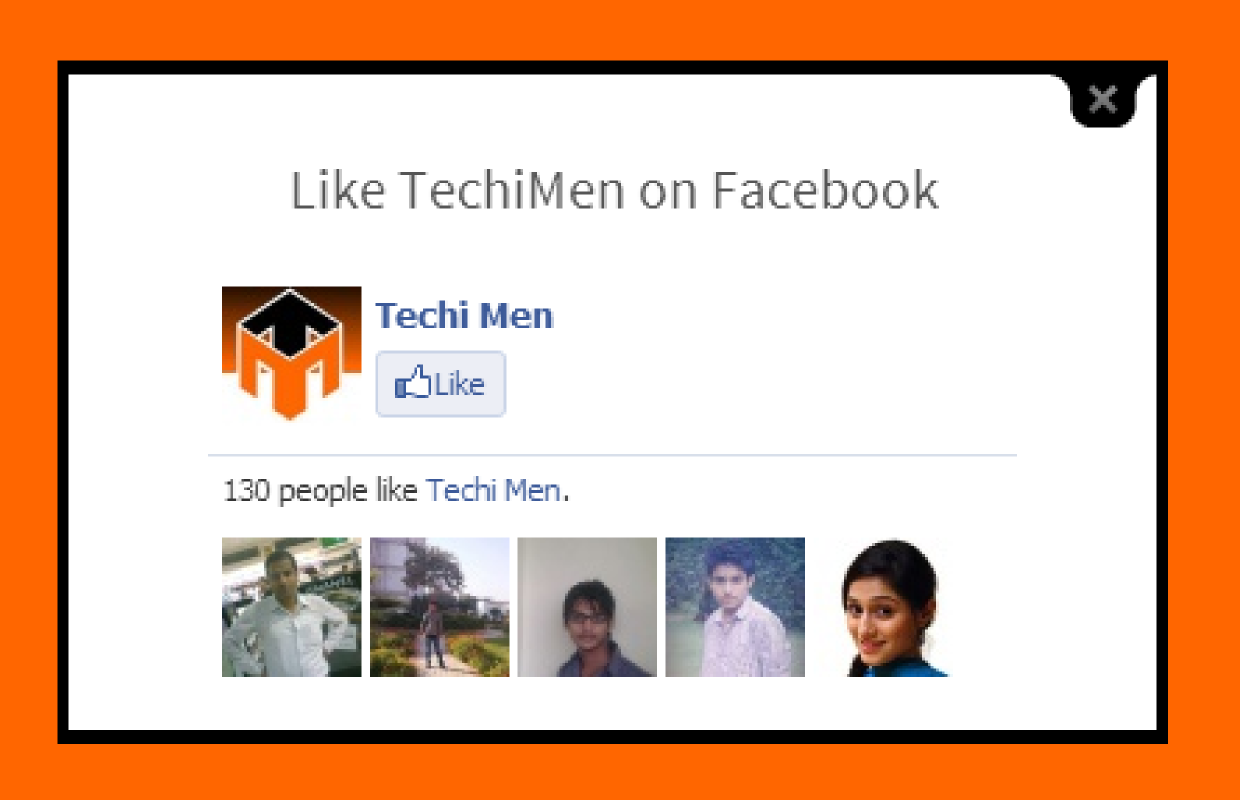
Facebook likebox in lightbox for new visitor

How to open Facebook likebox in lightbox
What if you ask your first time visitor on your website to like your Facebook page, about 90% people will exit and about 10% people will like your page. Your Facebook page's likes is the status of your page on Facebook. Isn't it? Yes it is this widget will help you little to increase likes. Even we used this for sometime to increase our likes on TechiMen but we later removed it for no reason. This widget help you make your blog more professional and good looking and the increase in your Facebook likes. The best thing is that this widget only ask to like those visitors who visit the blog or website for the first time. If somebody clicks anywhere except on likebox, the likebox lightbox disappears. The pop-up likebox also disappears when the page is refreshed/reloaded or F5 is pressed.

So let us come to the point 'how to install it on your Blogger blog?':
Steps:
1. Go to Blogger then to your blog
2. Now go to layout from dashboard.
3. If you already have HTML/JavaScript
OR
Click on Add Widget in any section "Sidebar or Footer" and select HTML/JavaScript
4. Now copy the script below (after changing 'TechiMen' with your Facebook page username or page id) and paste in the HTML/JavaScript widget


5. Now click on 'Save'.

Now the widget will work when somebody visits your blog or website first time or deletes its cache/cookies and browser history. I hope it works for you.

Cricket Mag Template for Blogger


Name of Blogger Template: Cricket Mag
For: All blogs or websites which post news or articles about any sport specially cricket.
Published: August, 2013

            
Description: The template is designed for the blogs which are about cricket. But the template can be customized for any sport. For example Soccer, Tennis, Basket Ball or any other sport in this world. The template can also be used for news blogs and websites. The template has green and black theme with a background picture in which there are bats, balls, and the wills. You can customize the background image by going to Template > Edit HTML. The template has a great looking social pages menu buttons that are very light gray colored and become colored and more stylish when mouse is hovered over the buttons. The template also serves featured posts, and most recent posts. Footer is designed perfectly like any professional template. The template also has 'Related Articles' widget below posts and 'Share it please' above posts by default. The template has great advertising spots where you can place your adsense widget/codes. Templateism claim that the template is not just 'SEO friendly' it is 'Highly SEO friendly' and will bring traffic quickly after you start posting. The pages menu at the top of template is the most interesting part of template because it is multi-level. For example you can place your pages like: Teams > South Asia > India.
Things to remember: You can post images of any size but we recommend you to post images with ratio 59:44 (e.g. 590 X 440 or 1180 X 880). Don't try to extend the title of your posts more than 50 characters or less than 30 characters.
How to setup: There are no instructions for 'How to setup' for this template.

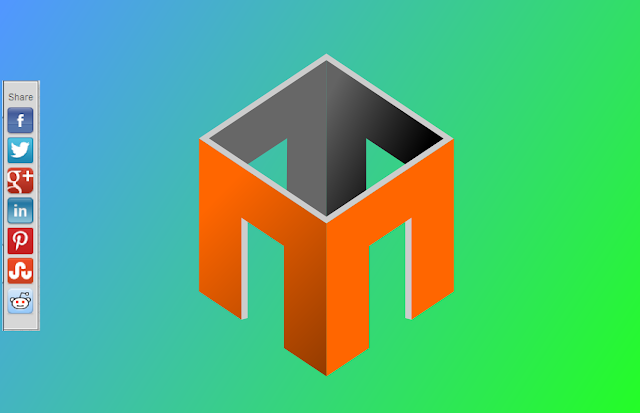
Social sharing buttons floating bar

Share posts on Facebook, Twitter, Google+, LinkedIn, Pinterest and to many other sites.

This widget will the option for your visitors to share your posts on their social network. The widget has button for all popular social bookmarking websites. The widget is floating sidebar with the buttons of Facebook, Twitter, Google+, LinkedIN, Pinterest, StumbleUpon and Reddit by default. You can also add Technorati by adding 'technorati' in script. See the post 'How social bookmarking can help you?'

Follow the below steps to install the widget:
1. Login your Blogger account and go to your blog.
2, Now go to the 'Layout' from dashboard.
3. Open any HTML/Javascript widget if you have already added some
OR if you don't have added any HTML/JavaScript widget
Add a gadget/widget in the sidebar.

4. And chose HTML/JavaScript
5. Now copy the following code:

6. Paste the code in the HTML?JavaScript widget and click save
7. Everything is done and you can now easily share your post to all the networks and your visitors can also share the posts.

 You can preview the widget in action by clicking on the below button:

Social bookmarking to increase website visitors

How to have more visitors by social bookmarking
Want visitors instantly for your new blog or website? If yes then social bookmarking is a way to increase your visitors. For example if you had more than 500 friends on Facebook and no visitors on your blog or website then you should not wait to make use of your Facebook friends to increase your traffic. Being genuine we don't think that social bookmarking is the way that will increase your blog or website's page rank many times but it only helps you to increase the visits. You should know all the following things to increase your web traffic with the help of social bookmarking/sharing:

What is social bookmarking: Social bookmarking is to share your posts URL on the social sharing sites (e.g. Facebook, Google+, Yahoo etc.). If you are a blogger, then you must have seen sharing buttons below the posts of your blog or if not then someone other's blog. If you don't have these buttons on your blog's post then this post "Social sharing buttons floating bar" can help you.

Why social bookmarking: Your website is on web but how you will your friend's or people that you have a website. Social bookmarking even increases the web traffic to your website if your blog doesn't come in big G's (Google) search.

How to social bookmark: You can social bookmark by just clicking social share buttons if your blog has social sharing buttons widget if you don't have you can install or you can manually social bookmark by going to the social bookmarking website and posting the URL/link of the post/page you want to share. For example, in Facebook you can update your status by the link or in Twitter you can tweet the link.

Websites for social bookmarking:
There are number of websites for social sharing. But the 95% people are not going to visit any website other than Facebook, Twitter, Google+ or hardly Pinterest or LinkedIN. We suggest you to only share on Facebook, Twitter and Google+. Don't waste your time on other websites. Use that time in posting quality content on your website that we have experienced on TechiMen. 

Tips:
You should make the title of share attracting and short but genuine
You should ask your friend's to share the link
You should ask your friend's  to retweet (on Twitter)
You should create page on Facebook, Google+ and Twitter
Your pages should be professional. These posts may help you 'How to design Facebook cover page?', 'How to design Twitter cover or header?' These posts have the layouts that may help you designing your pages on Twitter and Facebook.
You can also create a channel on Youtube. You videos can advertise your blog or website. You can create tutorials (See this post 'How to create video tutorials') if you have a website similar to TechiMen.

Retina: A template for technology websites/blogs

Retina is free premium template by Templateism sponsored on TechiMen
Name of Blogger Template: Retina
For: Websites or Blogs about technology, tutorials, geeks, tutorials, gadgets, apps et cetera.
By: Templateism
Published: June, 2013


Description: Retina template suits every blog. If it is personal, about geeks, technology, games, softwares, information, SEO, illustration or anything. Retina template is perfect with its blue colored superb fonts. Retina template is premium and is free for download by Templateism. The template has many categories to show posts on the homepage of your blog and your blog's home page look fantastic and static page. Your blog or website becomes professional. The most of the leading tech websites uses the similar templates. The template has great footer. The template shows the team members of the blog/website. The widgets above footer are really good. Everything is perfect.

Things to remember: You should fix the number of characters of the post titles in your brain because if you post the posts with different length of titles then at the homepage of your blogger home, the posts in two columns will not look great.

How to setup:
Posts: you should upload images with ratio of Width:Height 14:9 (e.g. 280X180 or 1400X900) for best results on homepage.

Featured posts (Technology, Sports, etc.): To feature posts in technology or sports on home page just label the posts with respective label. E.g. if you want to feature a post under technology label that 'Technology'. If you want to edit the featured categories you can do that by going to your blogger account > your blog > Template > Edit HTML. Then find by pressing Ctrl+F and typing the name/label of categories there and replacing with your own category.

Automatically convert all Rs. to Rupee symbol

How to change rs to rupee symbol automatically
Want to use Rupee symbol instead of Rs. or Rs on your blog or website? Here is the method to do so. Rupee symbol is now very common to be used on websites and blogs. The complex method is that you put an image of Rupee symbol before every amount in Rupees. Sometime you will forget to put the image and sometime you will be lazy to do so. But we have a very simple method to do so by using a JavaScript being provided by WebRupee. You can also avail this service on your Blogger's blog. Even it is simpler to be installed on Blogger.

Steps:
1. Go to </body> section of your webpage's HTML code.
2. Copy the following script from here and paste before </body> of your page's HTML

3. Done. Now all the Rs. and Rs will be changed to Rupee Symbol. Even in the new post you just have to type Rs or Rs. before the amount and the JavaScript will automatically convert the text into Rupee symbol.

For 'Blogger' bloggers:
Steps:
1. Go to Blogger and login.
2. Now go to your blog and select 'Template' from dashboard.
3. Click on 'Edit HTML'
4. Find </body> (You can do this by pressing Ctrl+F and typing </body>)
5. Now copy the following script from here and paste before </body>

6. Done. Now all the Rs. and Rs will be changed to Rupee symbol automatically in every post of your blog.

If you are facing any problem installing the Rupee symbol on your blog, just feel free to comment.

How to install a template on Blogger?

How to install a template on blogger downloaded from a website other than blogger
Are you bored with Blogger's own default template or theme and want to install an awesome template for your Blogger's blog. Actually Blogger support third-party templates to be installed on your Blogger's blog beside the Blogger's own default templates.  For example, TechiMen is also powered by Blogger but we don't use Blogger's Template. So you can also use any template you want to install on your blog.
There was a time when people said that there are not good templates for Blogger's blog like Wordpress have. But now these are only excuses. Actually these people are lazy because they are not updating their Blogger Template with an awesome looking template from free template providing websites like bTemplates, Templateism, etc. (see the full list of such websites -under updation)
So follow the following steps, and you will be able to install the template you want to.

Steps:
1. Download a Blogger template from a template providing website like bTemplates, Templateism, etc.
2. Now find the .xml file you downloaded. If you you have downloaded a zip file then extract that and find the .xml file.
3. Go to Blogger, login and go to your blog
4. Now click on 'Template' from dashboard.

5. Then click on 'Backup/Restore'
6. Now click on 'Choose File'
7. Now select the .xml file from your computer.
8. Click on 'Upload'
9. Done. Now you can customize your template by clicking on 'Edit HTML'

Flying Twitter bird on your Blogger blog

Want to make your blog readers wonder when they see a Twitter bird flying on your blog. Actually this Twitter bird flies when someone scroll your page down. It sits anywhere on your page. When you hover the bird with mouse you have two options: 'tweet this' and 'follow me'. The Twitter bird make your readers to easily follow you or share your post on Twitter in a creative and lovely way. So why are you waiting just follow the below steps and you will be able to put the Twitter bird on your blog.


Steps:
1. Go to Blogger, Sign in and go to your blog.
2. Go to 'Template' from dashboard
3. Click on 'Edit HTML'
4. Find </body> in the HTML (You can do this by pressing Ctrl+F and typing </body>)
5. Now copy the code below from here and paste the code just above </body> in your template's HTML
6. Replace TechiMen with your Twitter username.
7. Now click on 'Save'. (NOTE: If the HTML is not being saved. Then make the code friendly by using 'Postable Service'. You can post the code there and click 'make it friendly'. Then copy the code from there and use. Now the HTML will be saved)

Stop copying content from your blog or website

Want to stop people copying content or text from your blog or website.
This is the easiest way to stop people from copying your content.
Tired of copycat bloggers, who copy your content and post your content on their blog. Then we have solution for you and this is really easy to do.
Today we have a trick to beat the copycat people who steal your content and increase their traffic and you got nothing for your creativity. Isn't it irritating? Yes it is. Because I feel this myself when I search my post on Google and that takes me to a blog which has exactly same content that I have posted on TechiMen.
Let us come to the topic that 'How to stop people from copying text or content?'
Steps:
1. Copy the following code


2. Now paste this in HTML of your website
3. Done. Now the code should work.

For Blogger Users:
Steps:
1. Log in your Blogger account
2. Go to your Blog's dashboard
3. Go to 'Layout'
4. Now create new widget and select 'HTML/JavaScript' or select any of your existing 'HTML/JavaScript' widget (Example Facebook Likebox).
5. Now paste the above code there. Save the widget
6. Done. It will work absolutely.

If you have more ideas about blocking the content copying then comment.


HOME      CONTACT      ABOUT      SUBMIT


Blog by Dev Baisoya | Proudly powered and hosted by Blogger