Showing posts with label Windows. Show all posts

Shortcut file properties in windows

basic tutorials, windows, tutorials, shortcut file

Want to create a shortcut file in Microsoft Windows so that it open a specific file in a specific software? Also you can open a file with the shortcut key. Yes you can create a Windows shortcut file to open a file in a software. For example if you want to open a image file in png, gif, jpeg format in Adobe Photoshop or Inkscape, or you want to open a website in Google Chrome and another in Mozilla Firefox or Internet Explorer you can do that by creating different Microsoft Windows shortcut files. You just have to configure it.

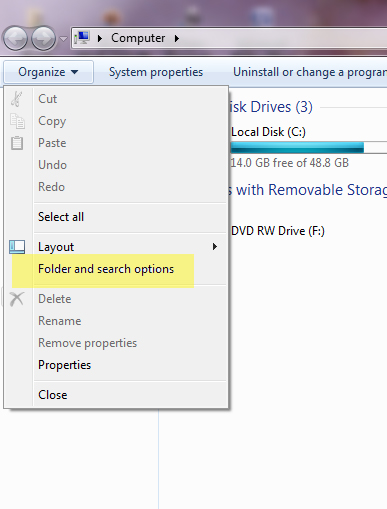
Find where are Folder Options in Windows 7


Where are the 'Folder Options' in Microsoft Windows 7?
In Microsoft Windows XP, The folder options were simple to find. But in Microsoft Windows 7, Microsoft has made some changes. If you want to find the folder options in Microsoft Windows 7. And the truth is that Folder Options are more easy in Microsoft Windows 7 to find.

You can do this by just typing 'Folder Options' in Start
Check the screenshot.

Or if doesn't work, You can find the Folder options by following the following steps:

  1. Go to My Computer (or press Windows + E)
  2. Click on 'Organize'
  3. Then click on 'Folder Options'
  4. Here you can chose the options you want.
  5. Done.Check e screenshot
Other Method is by Going to Control Panel.

How to switch windows in Microsoft Windows 7

This post is about changing or switching the windows
Ways to switch windows in Microsoft Windows:
1. By using mouse
2. By pressing Windows+Tab


3. By pressing Alt+Tab


How to launch Task Manager in Windows 7?

The Best ways to launch Windows Task Manager in Microsoft Windows 7:

How to launch Windows 7 Task Manager directly?
Uses of Task Manager:
To see the processes which are running on the system.
To end the process which is not responding.
To see the CPU and RAM usage
To check the status of Networking
To check the the status of users.

Best Method To launch Task Manager: Just Press Ctrl+Shift+Esc Simultaneously.
Other Methods:
Right Click on Windows Task Manager, and click on 'Start Task Manager'
Press Ctrl+Alt+Delete, Then Select Start Task Manager
Press Windows+R or run Windows Run, then type 'taskmgr' without semicolons and press 'Enter'

In Microsoft Windows XP you pressed/press CTRL+ALT+Delete to launch Task Manger but in Microsoft Windows 7, when you presses the same something different happens. A Windows 7 screen with many options like 'Lock this computer', 'Switch user', 'Change a password' is launched. Then you click on  'Launch Task Manager'. Sometime you do it with right-clicking on the Windows Task Bar and clicking on 'Task Manager'. But when your computer freezes/hanged then it these ways hardly works. The screen what you see on pressing Ctrl+Alt+Delete is:


Best way to press these three buttons simultaneously is:
to put your left hand's thumb on Shift and Ctrl and the left hand's index finger on Esc
In the following manner:


Comments are most welcomed

How to make windows taskbar auto-hide?


To do this just follow the following steps:
1. Right-click on the windows taskbar
2. Click on properties
3. Check "Auto hide taskbar"
4. "Apply" the settings

How to make bootable disc/CD/DVD of a OS (Operating System)


Prerequisite Softwares:
Nero OEM/Multimedia Suite

To make bootable disc/CD/DVD of a operating system like linux/windows/mac, follow the following steps:
1. Insert a bootable CD/DVD in your Disc Writer/DVD Writer/CD Writer
2. Run 'Nero'
3. Click on 'Copy Disc/CD/DVD
4. Select "Image Recorder" in the first option and the Disc partition in the second option.
5. Now click on 'Copy'
6. Select a desired folder where you want to save the image file, it will start creating an image file in your hard disc
7. On completion, eject out the disc and insert a blank writable disc/CD/DVD
8. Now open the image file in Nero, I hope you will not need do this as it is automatically set for image file
9. Now burn this image file to blank disc by clicking on copy/burn to disc option.
Thank for reading!!

How to remove all hyperlinks in word?


How to remove all hyperlinks in Microsoft Word 2007?

Its Dev, I tried googling on this question and the solution that came out is that we can do this by these two simple steps:

STEP 1: Press Ctrl + A, It will select all the texts and images in your document
STEP 2: Press Ctrl +Shift + F9

This will remove all hyperlinks from your Word File

BumpTop the best desktop ever!!


BumpTop is a Virtual Desktop Interface which has been acquired by Google. You can download its free demo here...


HOME      CONTACT      ABOUT      SUBMIT


Blog by Dev Baisoya | Proudly powered and hosted by Blogger