Showing posts with label Basic Tutorials. Show all posts

Shortcut file properties in windows

basic tutorials, windows, tutorials, shortcut file

Want to create a shortcut file in Microsoft Windows so that it open a specific file in a specific software? Also you can open a file with the shortcut key. Yes you can create a Windows shortcut file to open a file in a software. For example if you want to open a image file in png, gif, jpeg format in Adobe Photoshop or Inkscape, or you want to open a website in Google Chrome and another in Mozilla Firefox or Internet Explorer you can do that by creating different Microsoft Windows shortcut files. You just have to configure it.

How to create video tutorials?

screencast-o-matic can be used to create video tutorials
Everyone want to make their technology website or blog more professional with video tutorials. But when it comes to 'How?' you will search a software that may help you. If you don't come to a software that can you help you then this post will help you with the software.
Screencast-O-Matic is the best free software I found on the web for recording your computer screen, audio from microphone, notes and from webcam. Best thing is that the software can create high quality videos and both free and paid versions are available. There is no watermark or advertisement in videos created by Screencast-O-Matic even in the free version.

Limitations of free version: You can keep only one video to be edited in the software. Don't get confuse with the production of software because software can produce unlimited videos for free but you can only keep a single video to be edited, for example, you can add notes etc. There are no more limitations in the free version. You can click 'Done with the video' to create more videos.

Features:
High quality videos.
Options of video size: HD, fullscreen and many.
We can show or hide mouse clicks, mouse cursor.
We can add notes.
We can pause recording.
The software is very easy to use and you will master it in very soon.
You can upgrade to paid version with lot of more features.

Tips:
You can create a channel on YouTube and upload your video tutorials to that.
Give link to your related post in the video and in the description on YouTube. This will help you increase visitors on your website.
Don't forget to embed the video in the related post.

Find where are Folder Options in Windows 7


Where are the 'Folder Options' in Microsoft Windows 7?
In Microsoft Windows XP, The folder options were simple to find. But in Microsoft Windows 7, Microsoft has made some changes. If you want to find the folder options in Microsoft Windows 7. And the truth is that Folder Options are more easy in Microsoft Windows 7 to find.

You can do this by just typing 'Folder Options' in Start
Check the screenshot.

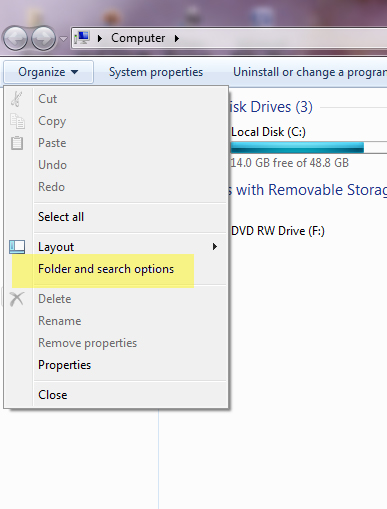
Or if doesn't work, You can find the Folder options by following the following steps:

  1. Go to My Computer (or press Windows + E)
  2. Click on 'Organize'
  3. Then click on 'Folder Options'
  4. Here you can chose the options you want.
  5. Done.Check e screenshot
Other Method is by Going to Control Panel.


HOME      CONTACT      ABOUT      SUBMIT


Blog by Dev Baisoya | Proudly powered and hosted by Blogger